Products  /  Type Atlas
Desktop app · Typography

Type Atlas

A quiet, local font manager that shows every typeface on your machine in its own voice.

Type Atlas browses the fonts already on your computer, renders previews from the real font files, and lets you organize, inspect, compare and activate them — without a cloud account or remote catalog.

ElectronmacOSLinuxVariable fontsLocal-first
Type Atlas
6Font formats read — TTF, OTF, TTC, OTC, WOFF, WOFF2
2Views — specimen grid and full-width list
0Remote services — library state stays on the machine
1Narrow preload bridge — the renderer has no Node.js access
The brief

Every typeface, in its own voice.

Type Atlas is our own desktop font manager, built for designers who keep a few hundred typefaces on hand and want to see them properly. It scans the system and user font folders, reads each file, and renders the preview text you type in the font itself — at the size and tracking you choose, in a specimen grid or a long list.

Around that browser sits the everyday organizing work: favorites, persistent tag collections, a detail inspector with metadata, the full supported character set and live sliders for every variable axis, and a two-font compare view with an adjustable overlay. Fonts can be imported into an app-managed library, exported, printed as a specimen, and explicitly activated for other apps.

It is deliberately local and careful. Library state lives in the app's own data folder, there is no catalog or analytics service, and system fonts are never modified — activation only ever adds or removes Type Atlas's own installed copy.

Visual layer

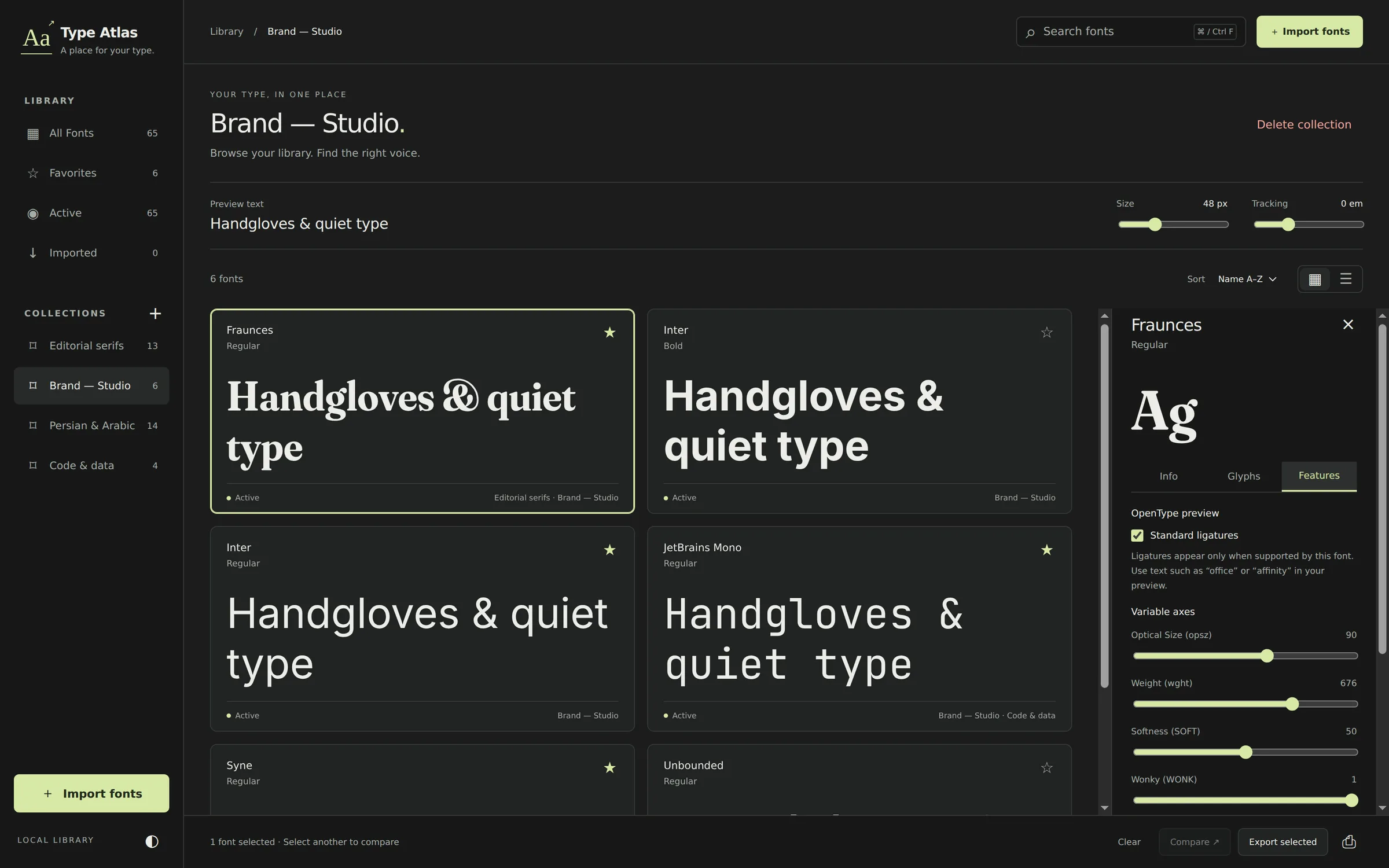
A dark specimen-first workspace

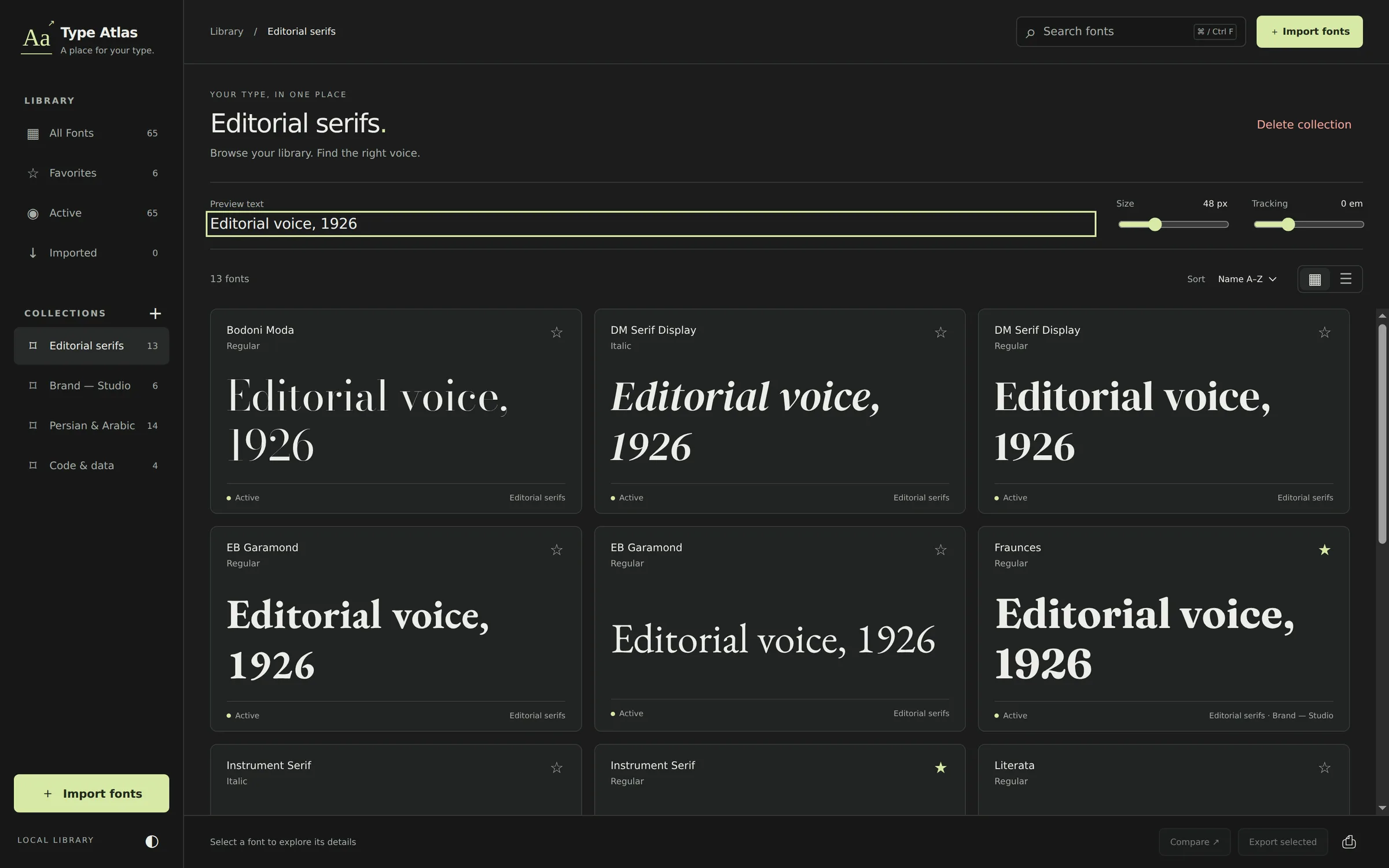
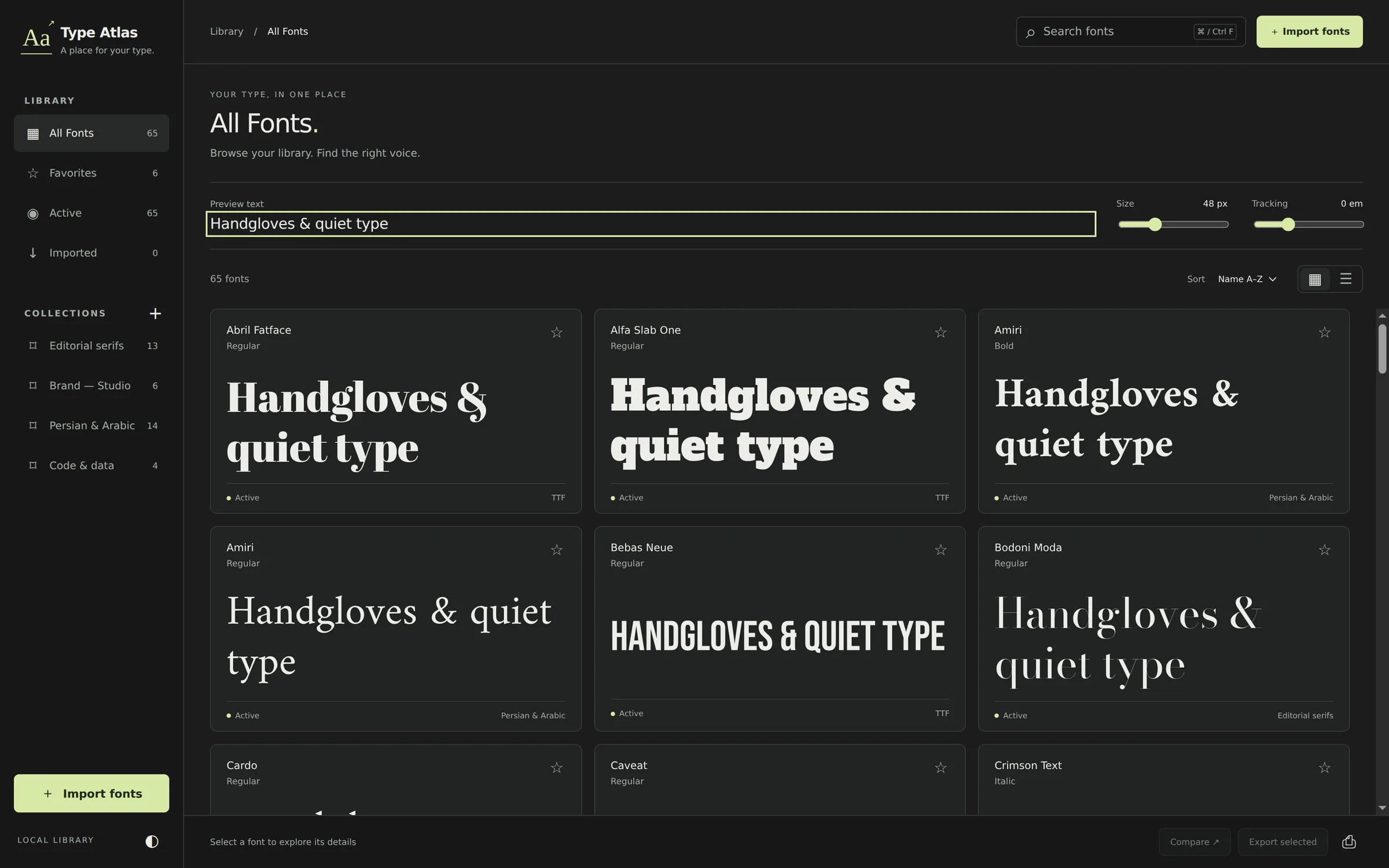
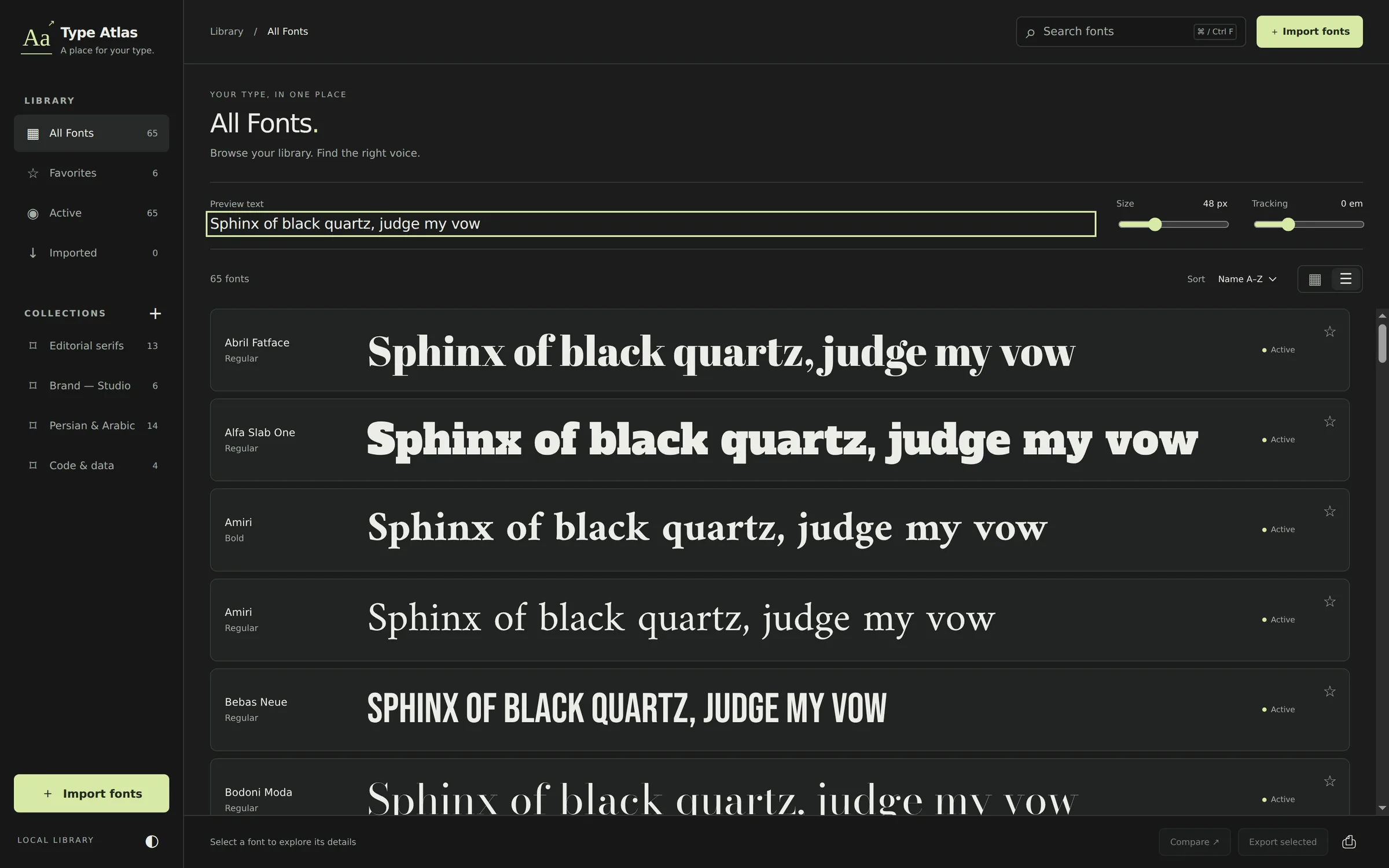
  • Every card and list row is set in its own font, driven by one shared preview line, size and tracking control
  • Sidebar groups the library (All, Favorites, Active, Imported) above user collections with live counts
  • Inspector opens alongside the grid with a large 'Ag' specimen and Info, Glyphs and Features tabs
Technical layer

Electron with a locked-down renderer

  • Renderer runs without Node.js; a narrow preload API is the only path to the main process
  • Fonts are served through an ID-scoped custom protocol instead of arbitrary file access
  • fontkit parses names, glyph counts, character maps and variable axes, including TTC/OTC collections
Functional layer

Browse, organize, compare, activate

  • Search across family, style, PostScript name, format and collection tags
  • Compare any two fonts side by side or overlaid with an opacity control
  • Import, export, activate/deactivate imported fonts, and print a specimen through the native dialog
Inside Type Atlas
In detail · 48 features

Every font, read from the file.

Type Atlas is a local desktop font browser and organizer, an independent implementation inspired by the Typeface 3.6.0 app. Everything below runs on the machine, with no account, catalog or analytics service.

01

Browsing the library

Every preview is drawn from the font's own bytes, not a stand-in.

Finds installed fonts

Scans the system and user font folders on macOS and Linux, including subfolders, when the app opens.

Six font formats

Reads TTF, OTF, TTC, OTC, WOFF and WOFF2 files and shows each face as its own card.

Previews in the real font

Each card loads the actual font file and sets your preview text in it, with a clear note if a file cannot be loaded.

One shared preview line

Typing new preview text updates every card at once, so you compare the same words across the library.

Size and tracking sliders

Preview size runs from 16 to 120 px and letter spacing from -0.08 to 0.2 em, applied to every card.

Grid or list view

Switch between a specimen grid and a full-width list for scanning long lines of text.

Sort by family or style

Order the library A to Z by family name or by style name, with natural number ordering.

Library scopes with counts

The sidebar splits the library into All, Favorites, Active and Imported, each with a live font count.

02

Search and everyday controls

Multi-word search

Every word you type must match somewhere in the family, style, full name, PostScript name, format or collection tags.

Search shortcut

Cmd F on a Mac or Ctrl F elsewhere jumps to the search field and selects its text.

Escape to step back

Escape clears the current selection first, then clears the search on a second press.

Helpful empty states

An empty library offers Import, a search with no results offers Clear filters, and a failed load offers Try again.

Light and dark themes

A sidebar button switches between dark and light, and the choice is remembered for next time.

Lazy preview loading

Fonts load only as their cards scroll near the screen, so large libraries open quickly.

03

Font inspector

Info, Glyphs and Features tabs, reachable with arrow keys, Home and End.

Metadata at a glance

Shows family, style, full name, PostScript name, format, glyph count, character count, source and file path.

Unicode glyph grid

Lists every supported character in the font itself, each labelled with its U+ code point.

Paged glyph list

Large character sets load 128 at a time with a Show more button that keeps your scroll position.

Ligature toggle

Turn standard ligatures on or off and see the change in the cards, the specimen and the glyph grid.

Variable axis sliders

Every variable axis the font defines gets its own slider within the font's real minimum and maximum.

Show font file

Opens the file's folder in Finder or the system file manager with the font highlighted.

04

Organizing

Favorite fonts

A star on each card adds or removes the font from Favorites, with keyboard focus kept on the star.

Named collections

Create named collections such as Editorial from the sidebar or the inspector.

Tag from the inspector

Checkboxes add the selected font to any collection, and a font can sit in several at once.

Safe collection delete

Deleting a collection asks first, removes only the tags, and keeps every font file.

Saved between sessions

Favorites, tags and collections are written to the app's own data folder and survive restarts.

Crash-safe saving

Library state is written to a temporary file, flushed and then swapped in, so a crash cannot leave a half-written file.

05

Compare and print

Two-font compare

Select exactly two fonts and open them side by side with the same text, size and tracking.

Overlay mode

Lay one font directly over the other to read differences in proportion and contrast.

Overlay opacity

A slider from 0 to 100 percent sets how strongly the top font shows through.

Specimen printing

Prints the selected fonts, or the whole current view, as specimen sheets through the system print dialog.

06

Import, export and activation

Activation only ever touches the app's own copy of a font.

Import font files

Pick several files at once and they are copied into a library folder the app manages, not moved.

No duplicate imports

Imported files are stored by content hash, so importing the same font twice keeps one copy.

Clear import errors

Files that cannot be read are listed by name with the reason, while the rest still import.

Export without overwriting

Selected fonts are copied to a folder you choose, and a numbered name is used if a file already exists.

Activate imported fonts

Installs a separate copy in your user font folder so other apps can use the font, refreshing the font cache on Linux.

Deactivate only its own copy

Removes an installed copy only after checking its hash matches what the app wrote, and refuses otherwise.

System fonts left alone

Fonts that came with the computer always show as active and cannot be deactivated or changed.

Web fonts stay preview-only

WOFF and WOFF2 files can be browsed but are not installed as desktop fonts, with a message saying why.

07

Font collection files

Each face shown separately

TTC and OTC files are split so every face, such as Bold or Light, previews from its own font data.

Rebuilt with valid checksums

Each face is rebuilt as a standalone font with its tables copied whole and checksums recalculated.

Checked against bad files

Malformed headers, face numbers and table bounds are rejected instead of being read past the file's end.

Private system faces hidden

macOS internal fonts whose names start with a dot are left out of the list without touching the files.

08

Built to stay contained

Sandboxed interface

The window runs sandboxed with context isolation and no Node.js access, so the interface cannot reach the file system.

Ten-call bridge

A frozen preload API exposes only ten font actions, and each call is checked to come from the app's own page.

ID-only font access

Fonts are served through a font:// address that accepts only known 64-character library IDs, never file paths.

No navigation or pop-ups

The window refuses to navigate away, open new windows or embed web views.

Permissions refused

Every browser permission request, such as camera or location, is denied automatically.

Unsigned local build

Runs from source with Node.js, or as an unsigned local Mac app that is not notarized for public release.

Something like this?

We can build yours, or rebuild the one you have.